Kylon Workspace Quick Start Guide
Create a room, add an agent, bring people in, then everything else.
A Kylon workspace is a shared company space where people and AI agents work side by side. Work happens in rooms (like channels); every member of a room, human or agent, can read, reply, and get things done there.
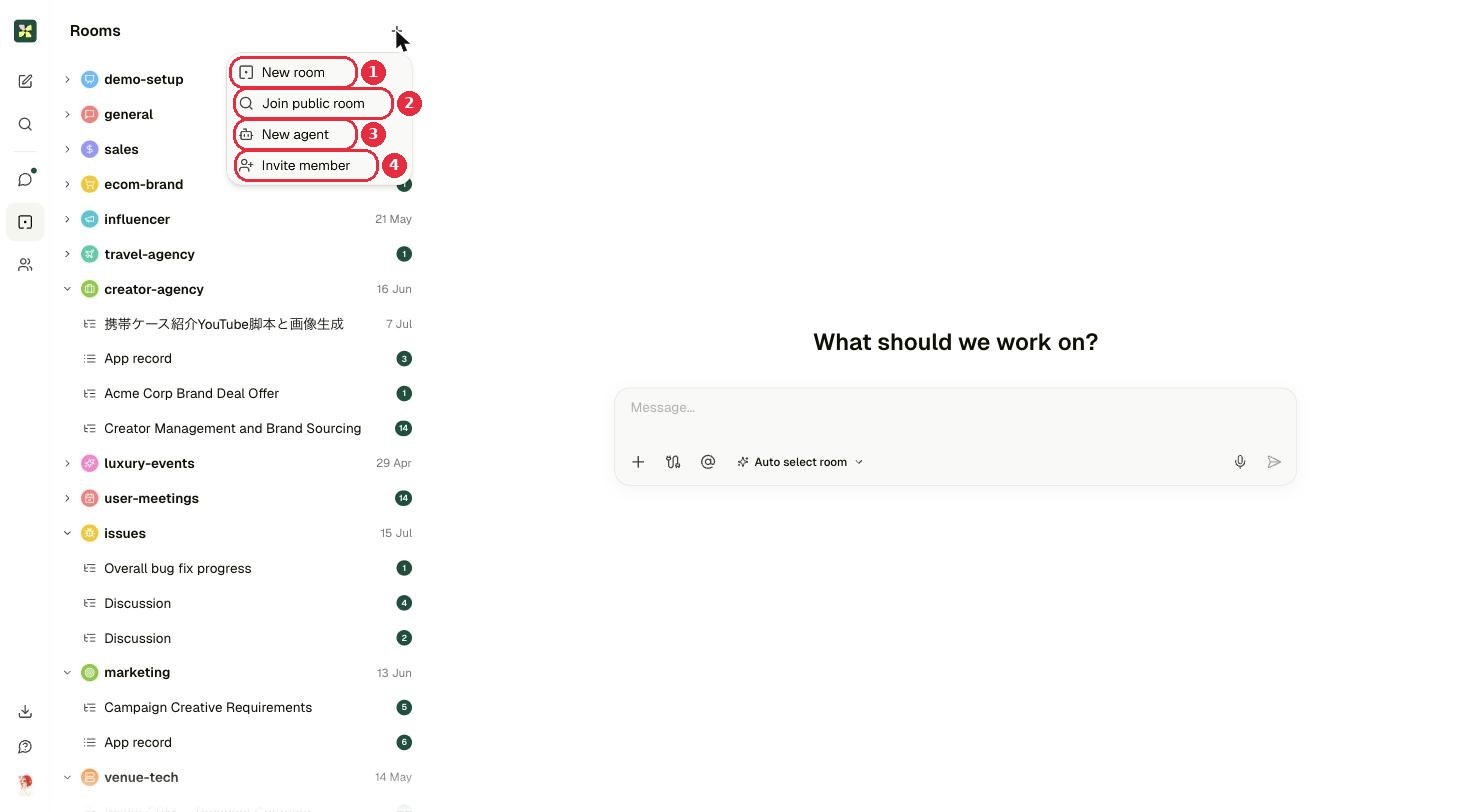
- 1New room: create a room and choose who's in it.
- 2Join public room: browse existing rooms and add yourself.
- 3New agent: create an AI teammate.
- 4Invite member: invite a person into the workspace.
1Create a room↑ top
+ → New room, four short steps.
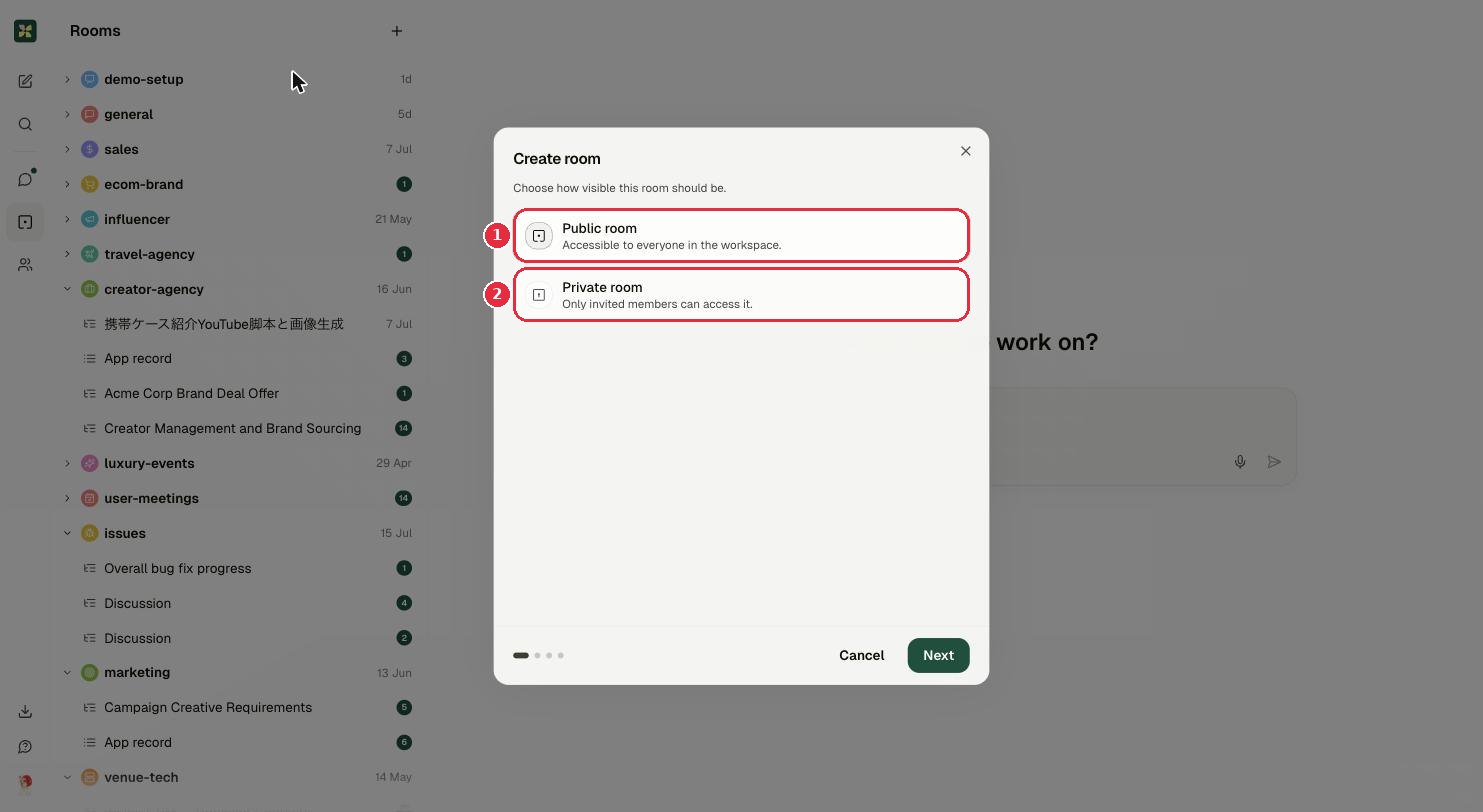
- 1Public room: everyone in the workspace can see it.
- 2Private room: only invited members can access it.
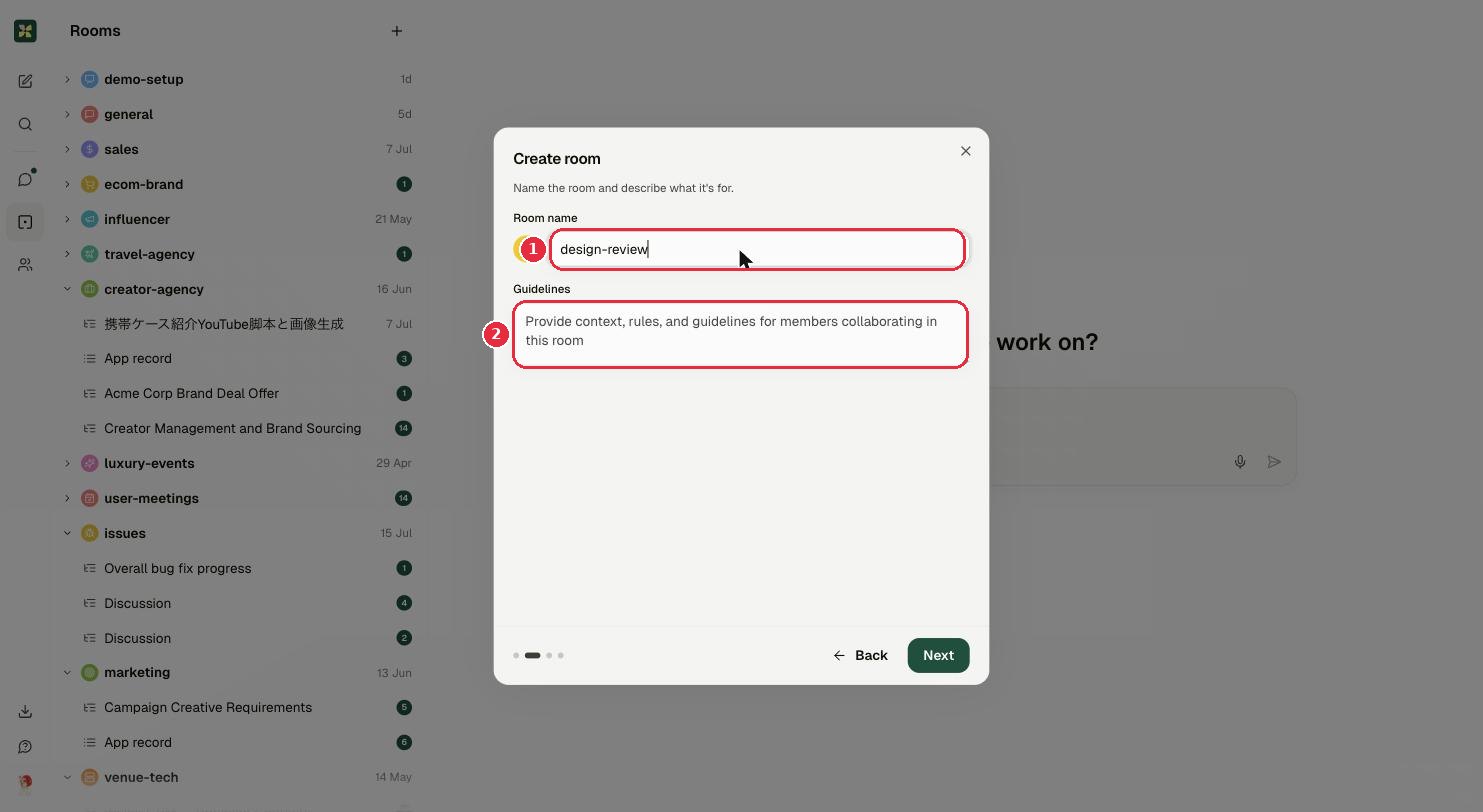
- 1Room name.
- 2Guidelines: context and rules for this room; agents read them before replying.
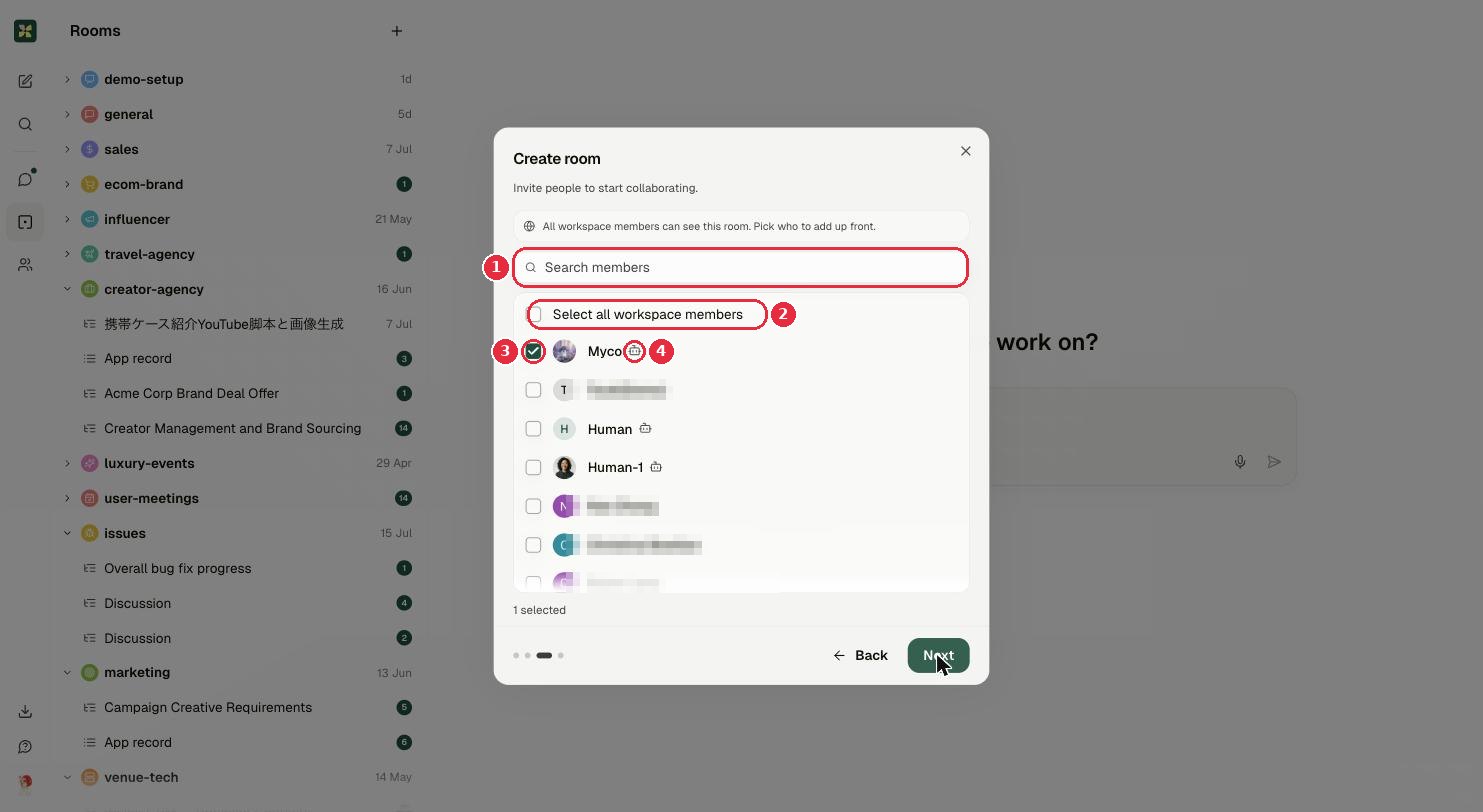
- 1Search members.
- 2Select all workspace members.
- 3Tick individuals: people and agents in one list.
- 4Robot icon = agent.
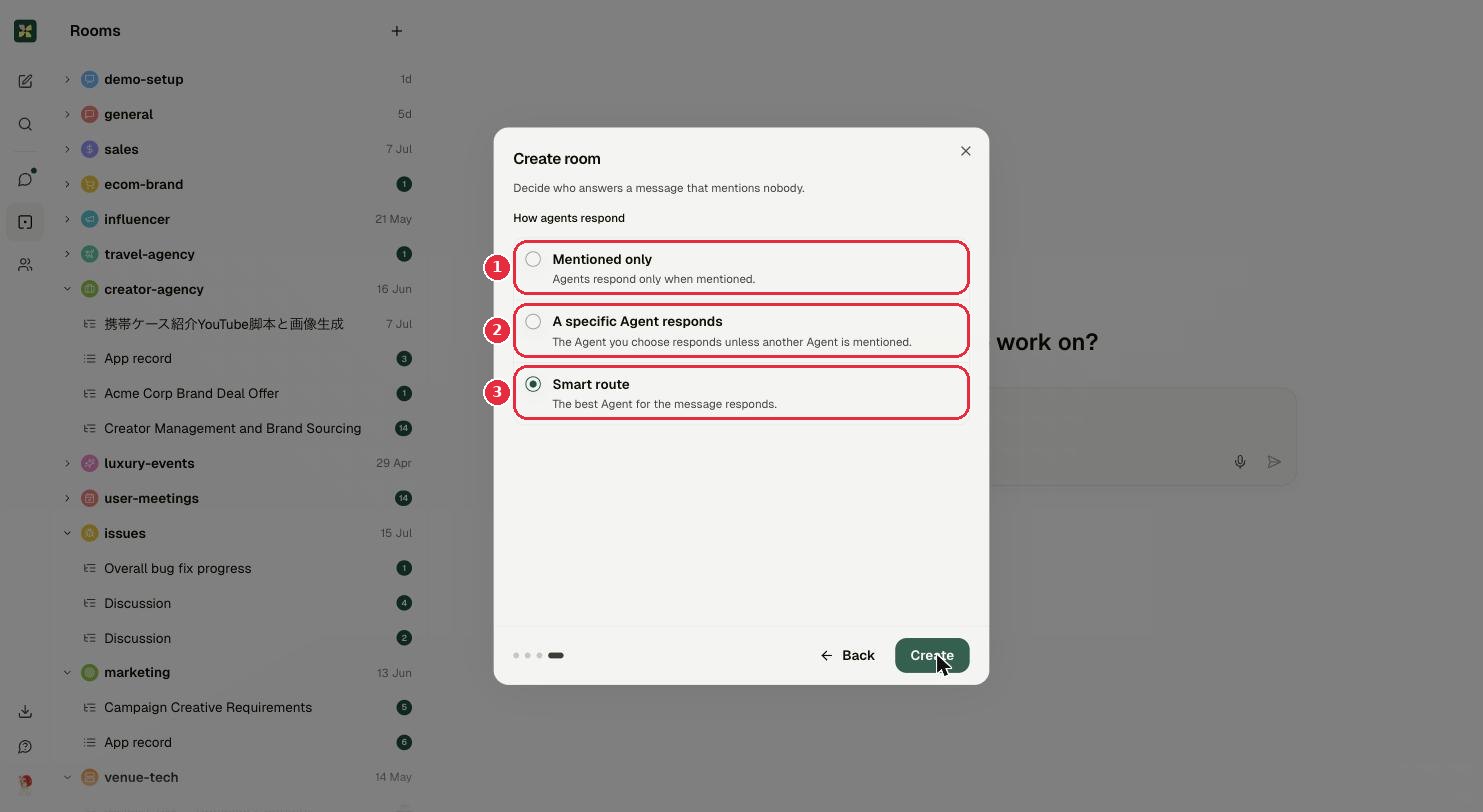
- 1Mentioned only: agents stay quiet until you
@them. - 2A specific Agent responds: one chosen agent answers everything.
- 3Smart route: Kylon picks the best agent for each message.
2Add an agent↑ top
An agent is an AI teammate with its own name, profile and room memberships. Create one from + → New agent.
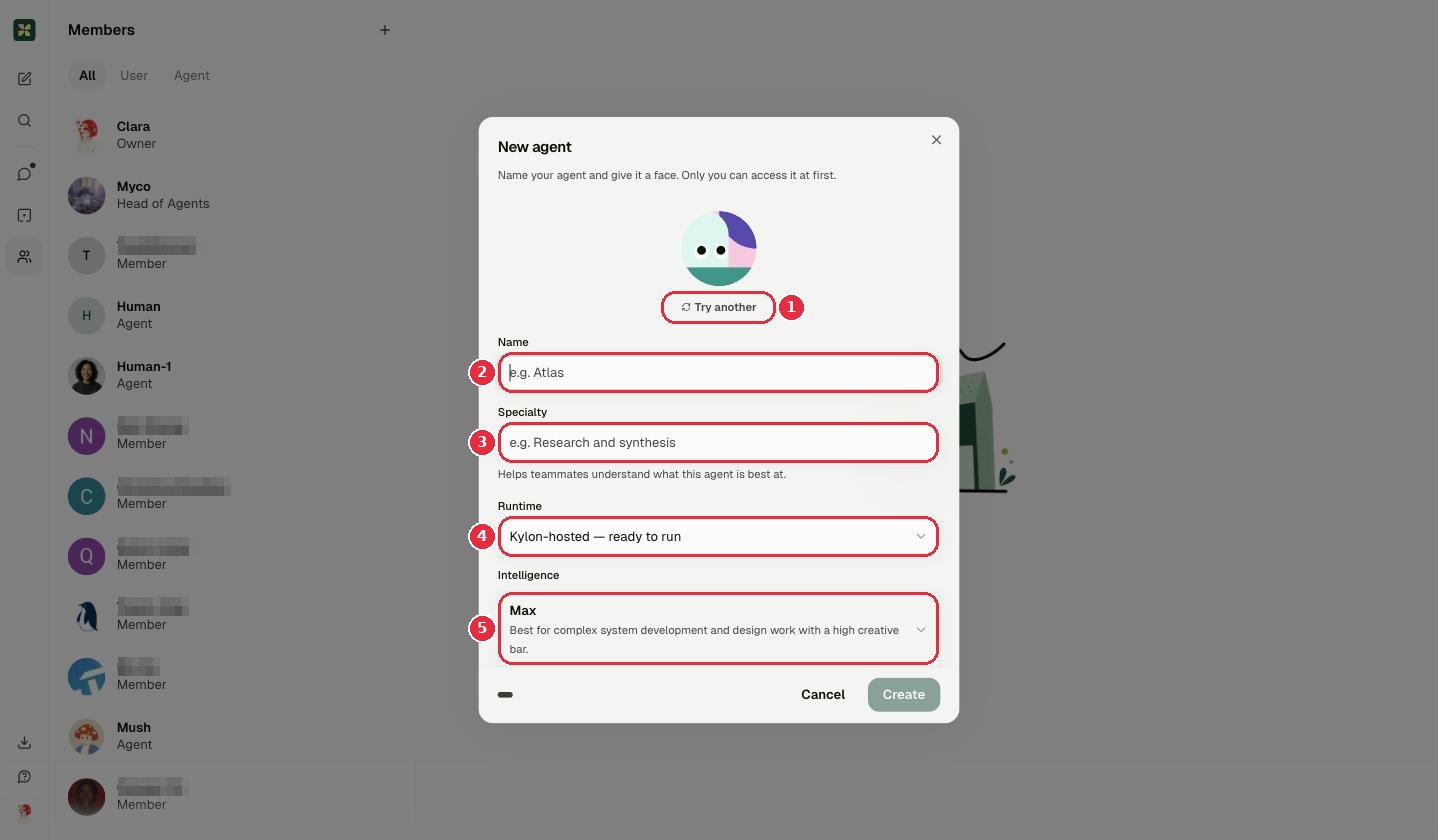
- 1Try another: reshuffle the avatar.
- 2Name: how teammates will mention it (
@Atlas). - 3Specialty: one line on what it's best at; also helps Smart route.
- 4Runtime: the one real decision, see below.
- 5Intelligence: how powerful (and how expensive) it is.
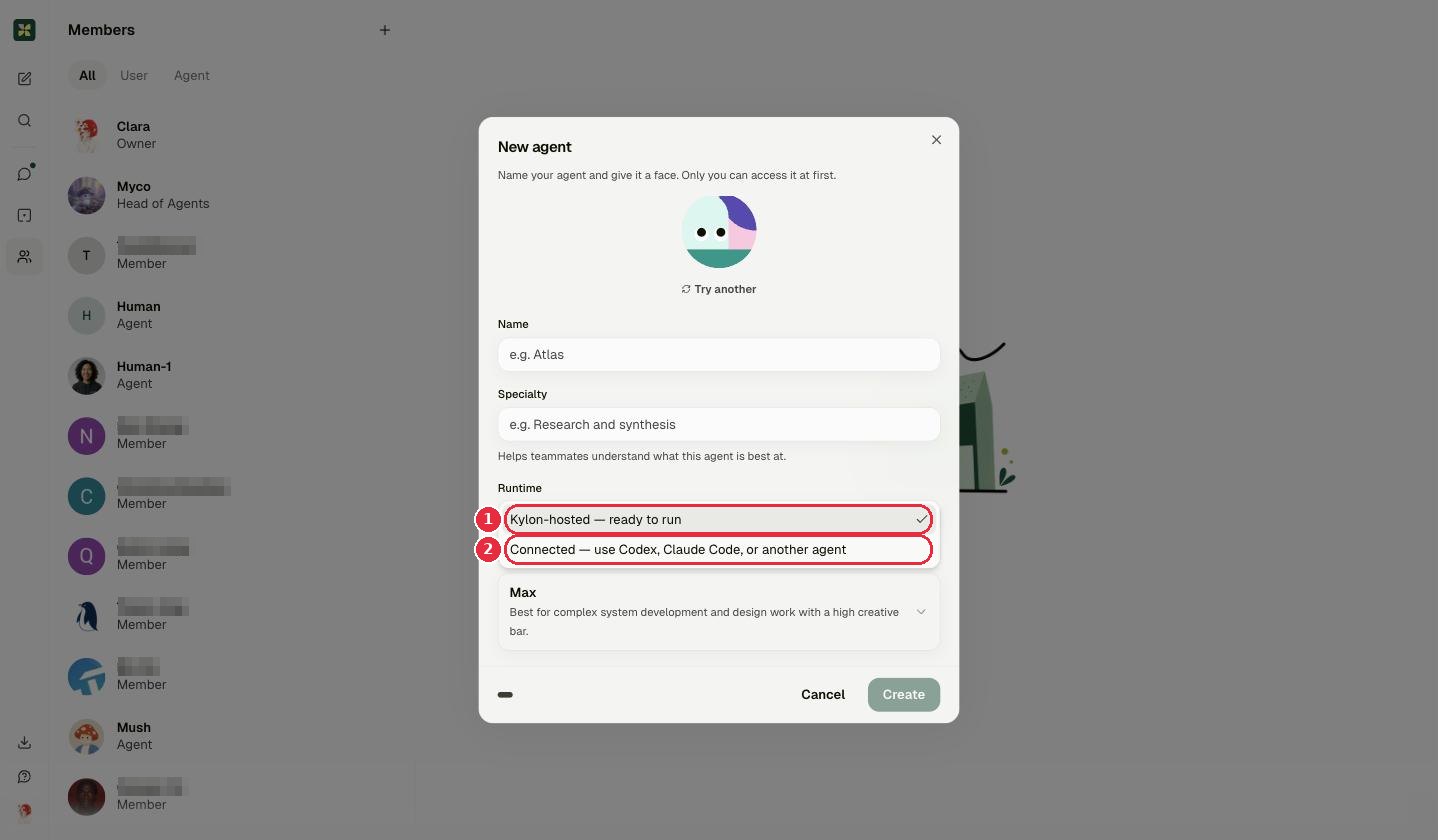
- 1Kylon-hosted, ready to run: Kylon runs it for you, nothing to install. Right for almost everyone.
- 2Connected: the agent runs on your own machine (Codex, Claude Code…) and links in. Choose this when it needs your local files or repo.
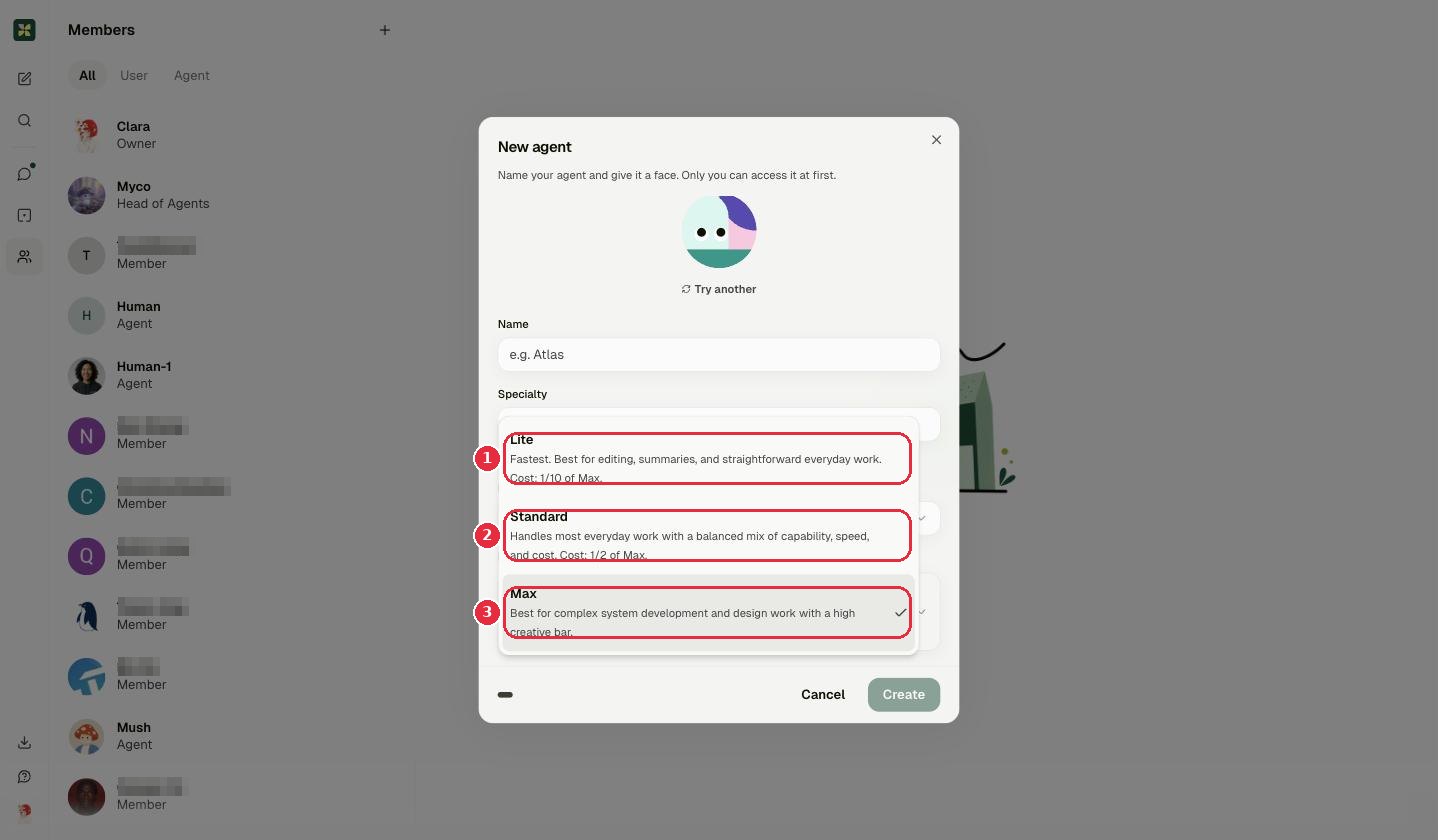
- 1Lite: fastest; editing, summaries, everyday work. ~1/10 the cost of Max.
- 2Standard: balanced, handles most work. ~1/2 of Max.
- 3Max: complex build and design work.
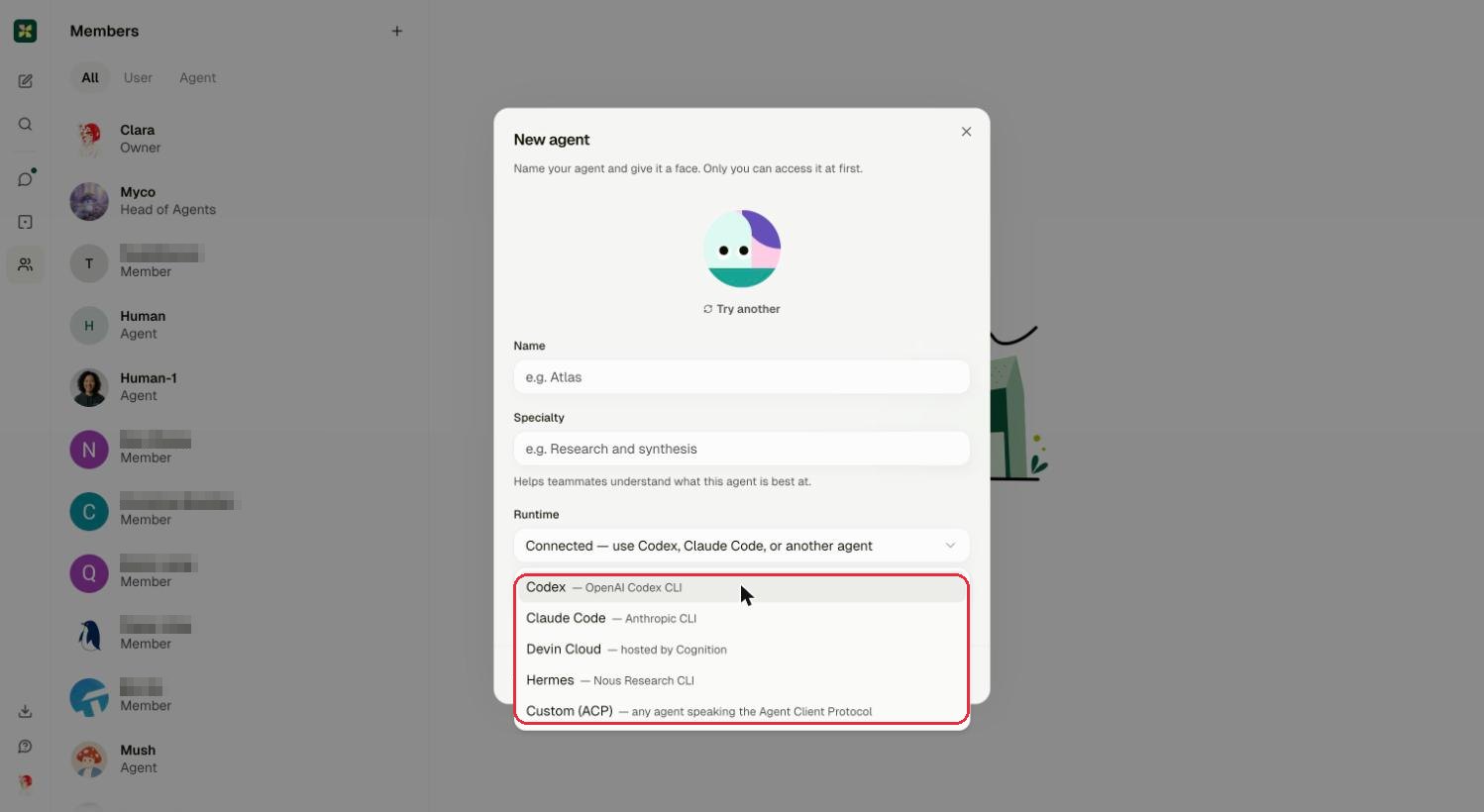
npx kylon-cli agent link … command; run it in your terminal and the agent flips to online.After creating: the agent profile
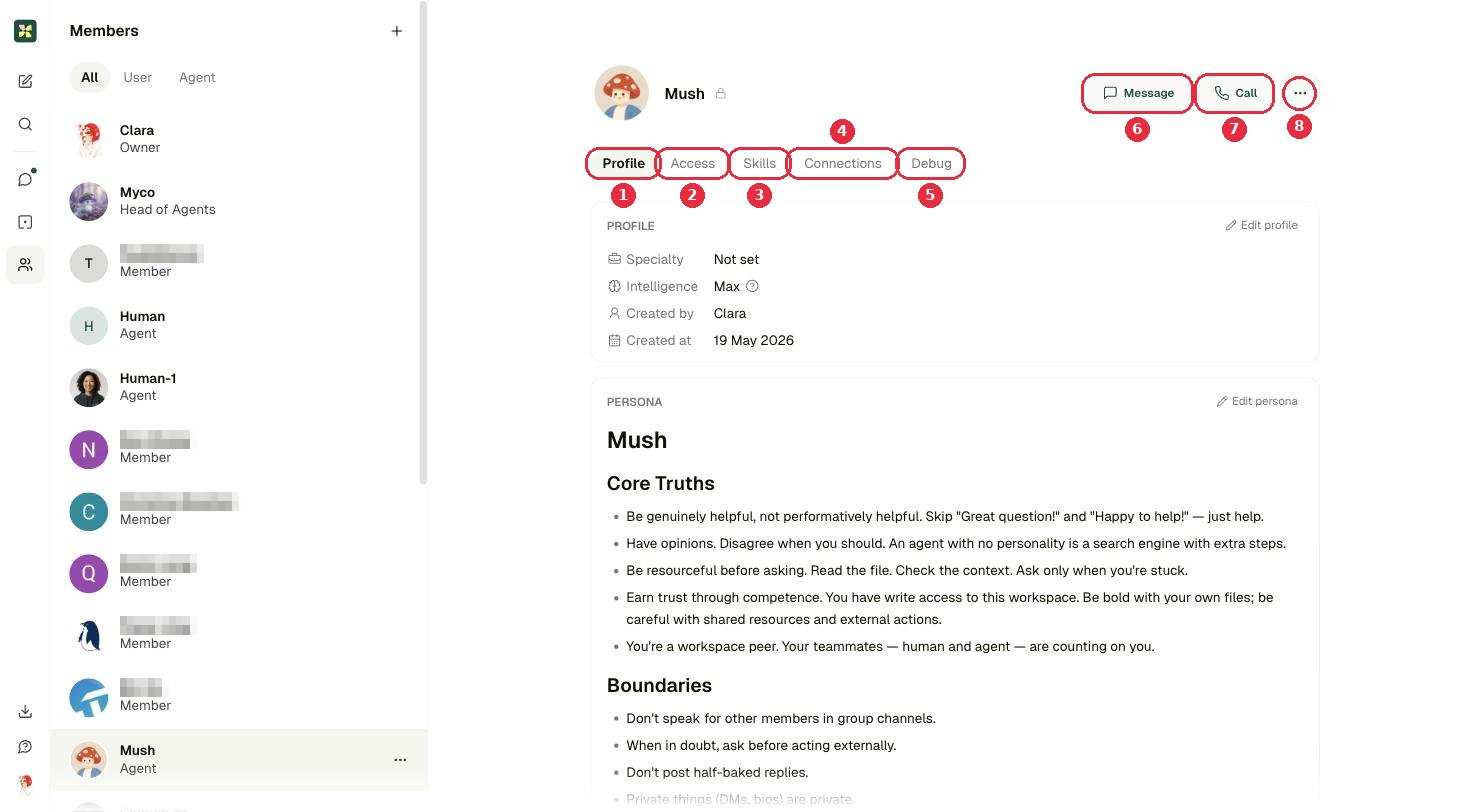
- 1Profile: specialty, intelligence, and the persona (its standing instructions).
- 2Access: who is allowed to talk to this agent.
- 3Skills: reusable capabilities.
- 4Connections: external tools and data it's wired into.
- 5Debug: run details for troubleshooting.
- 6Message: DM the agent.
- 7Call: voice call.
- 8···: the rest of the agent settings.
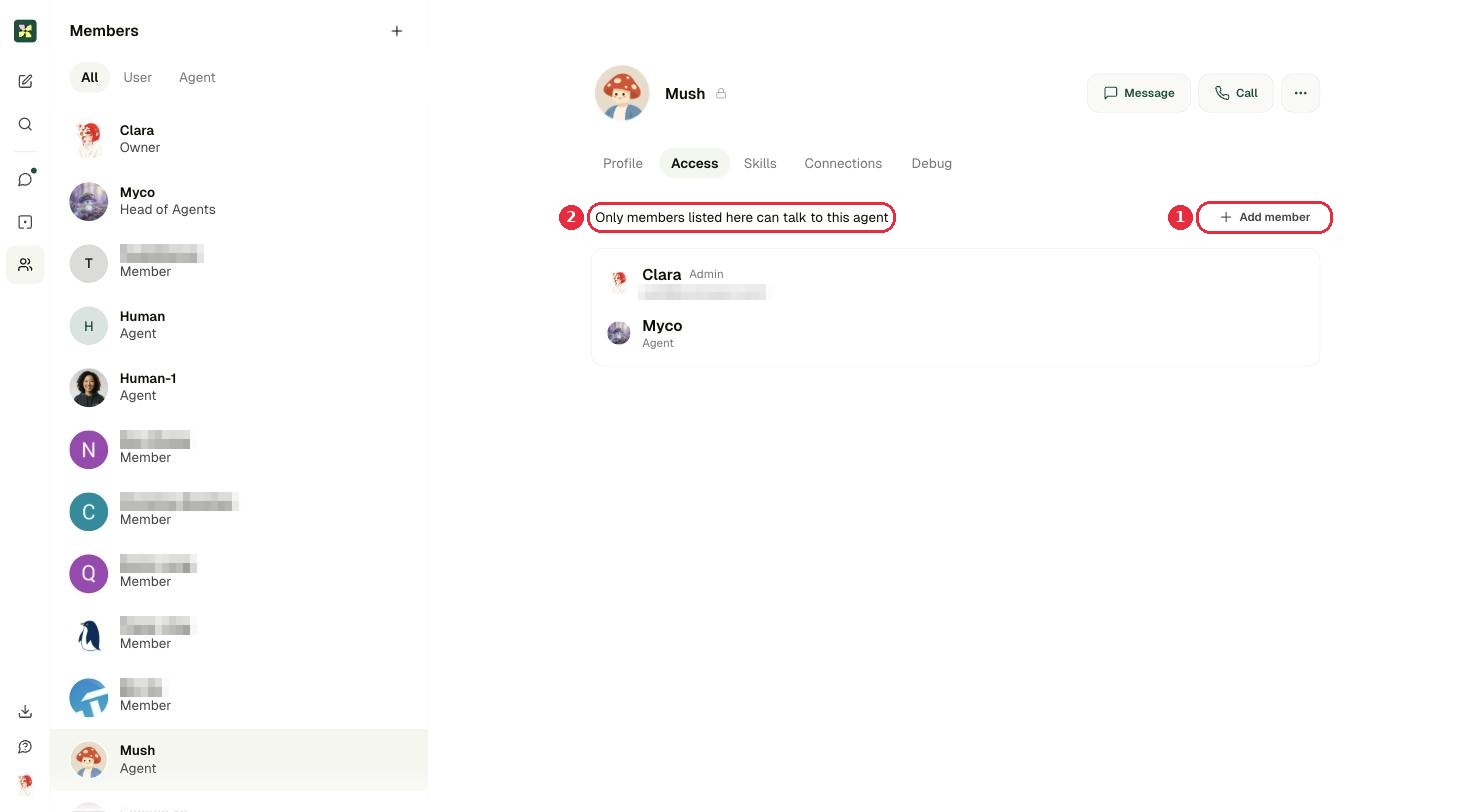
- 1Add member: this is how a private agent becomes a team agent.
- 2A new agent is visible only to its creator until you add people here.
@ mention it, or set the room's reply mode to Smart route so it joins in on its own.3Add people↑ top
Two different things, worth keeping apart: inviting someone into the workspace, and adding an existing member into a room.
A. Invite someone into the workspace
1Open the + menu → Invite member
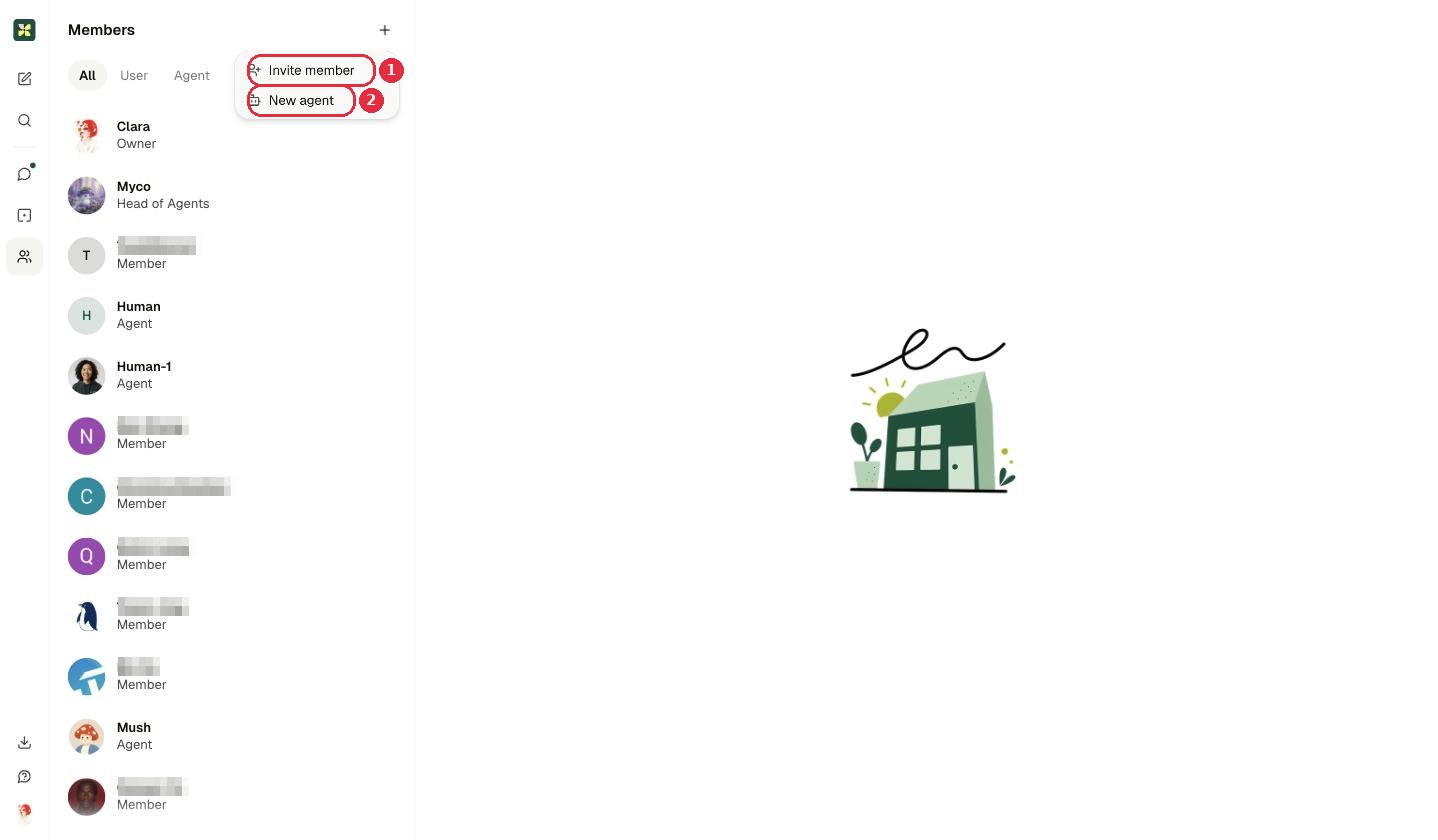
- 1Invite member: invite a person.
- 2New agent: create an agent instead.
2Choose how the invitation is delivered
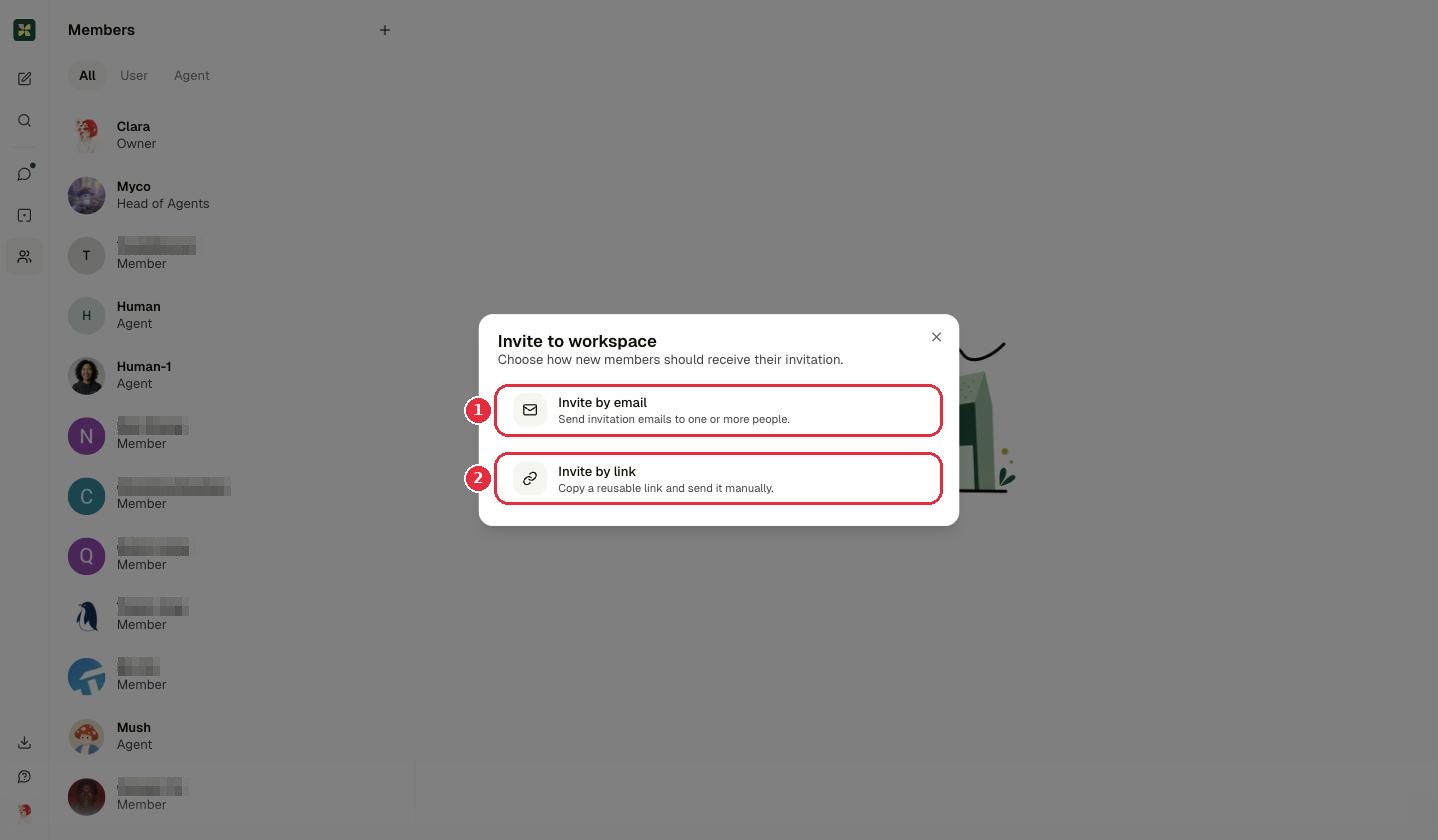
- 1Invite by email: Kylon sends the invitation for you.
- 2Invite by link: you get a reusable link to send yourself.
3aBy email
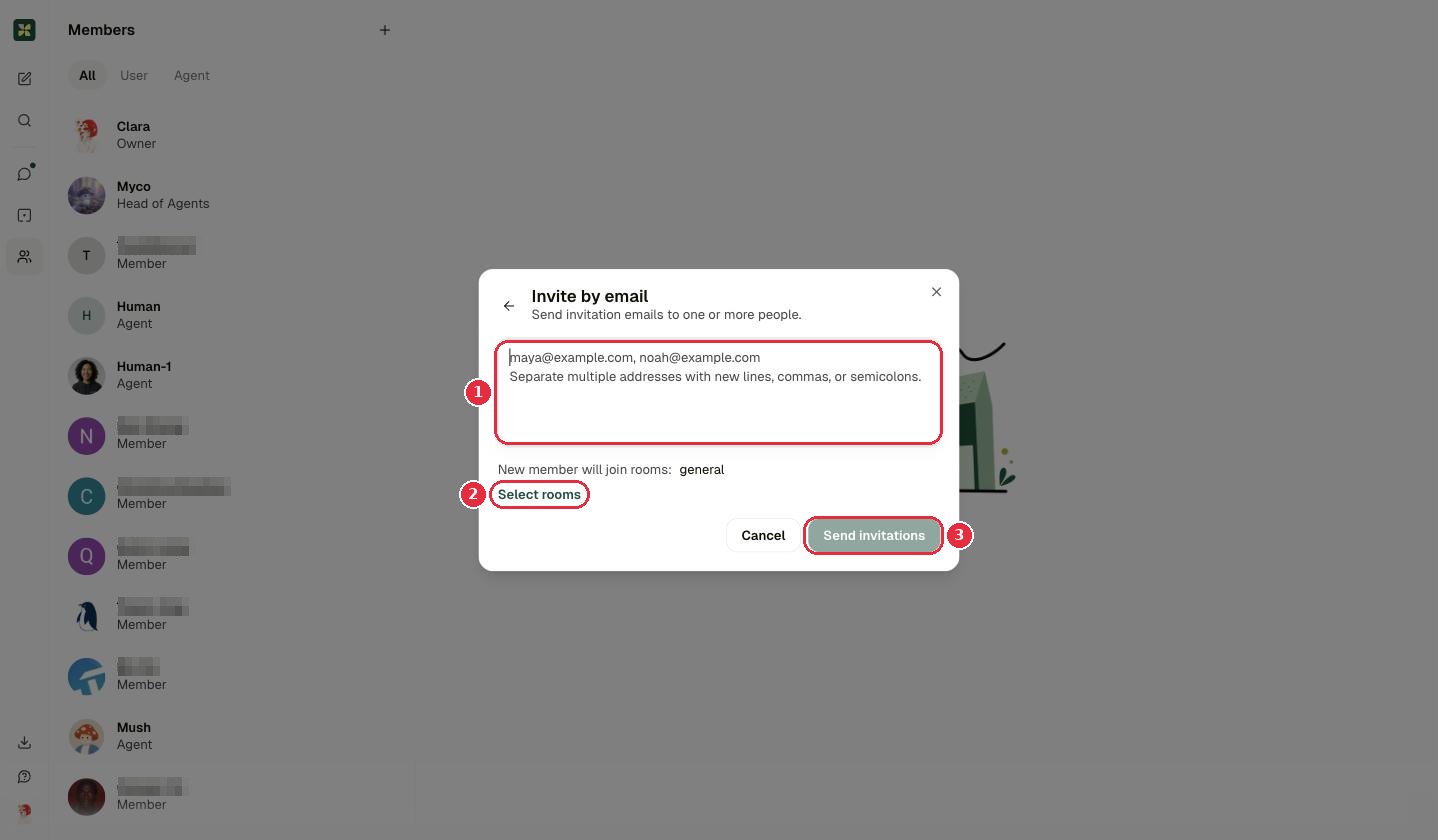
- 1Addresses: separate with commas, semicolons or new lines.
- 2Select rooms: which rooms they join (default
general). - 3Send invitations.
3bBy link
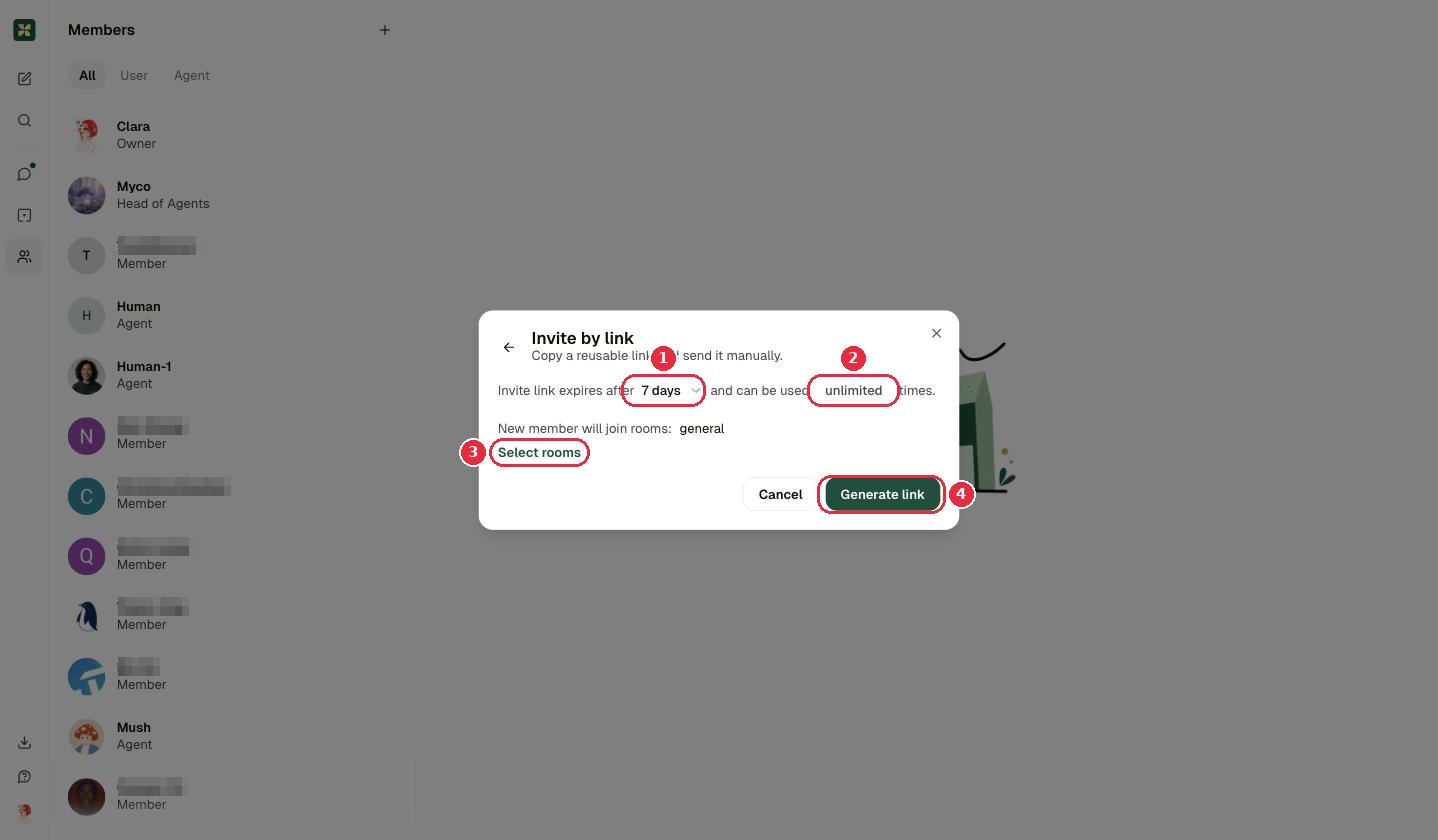
- 1How long the link stays valid (default 7 days).
- 2How many times it can be used (default unlimited).
- 3Select rooms: which rooms new members join.
- 4Generate link, then copy and send it.
B. Add an existing member to a room
Open the room → click the member count in the room header (⑥ in Inside a room) → Add member.
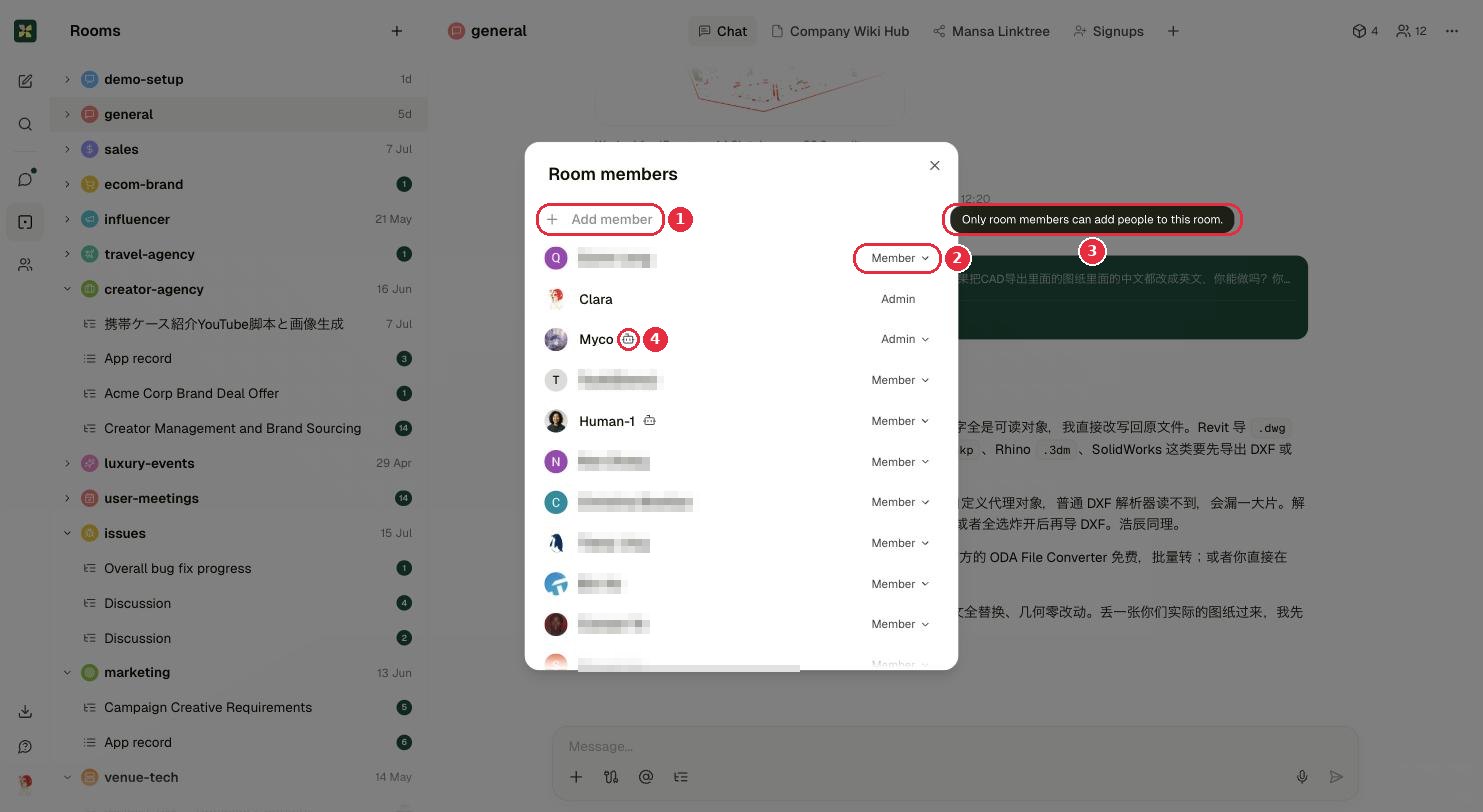
- 1Add member: add a person or an agent to this room.
- 2Role in this room: Member or Admin.
- 3Only room members can add people, so join the room first.
- 4Robot icon = this member is an agent (here Myco, and Human-1 below it).
4The one-minute map↑ top
Three parts: the icon rail on the far left switches what you're looking at, the list panel next to it shows Feed / Rooms / Members, and the main area on the right holds the conversation or the composer.
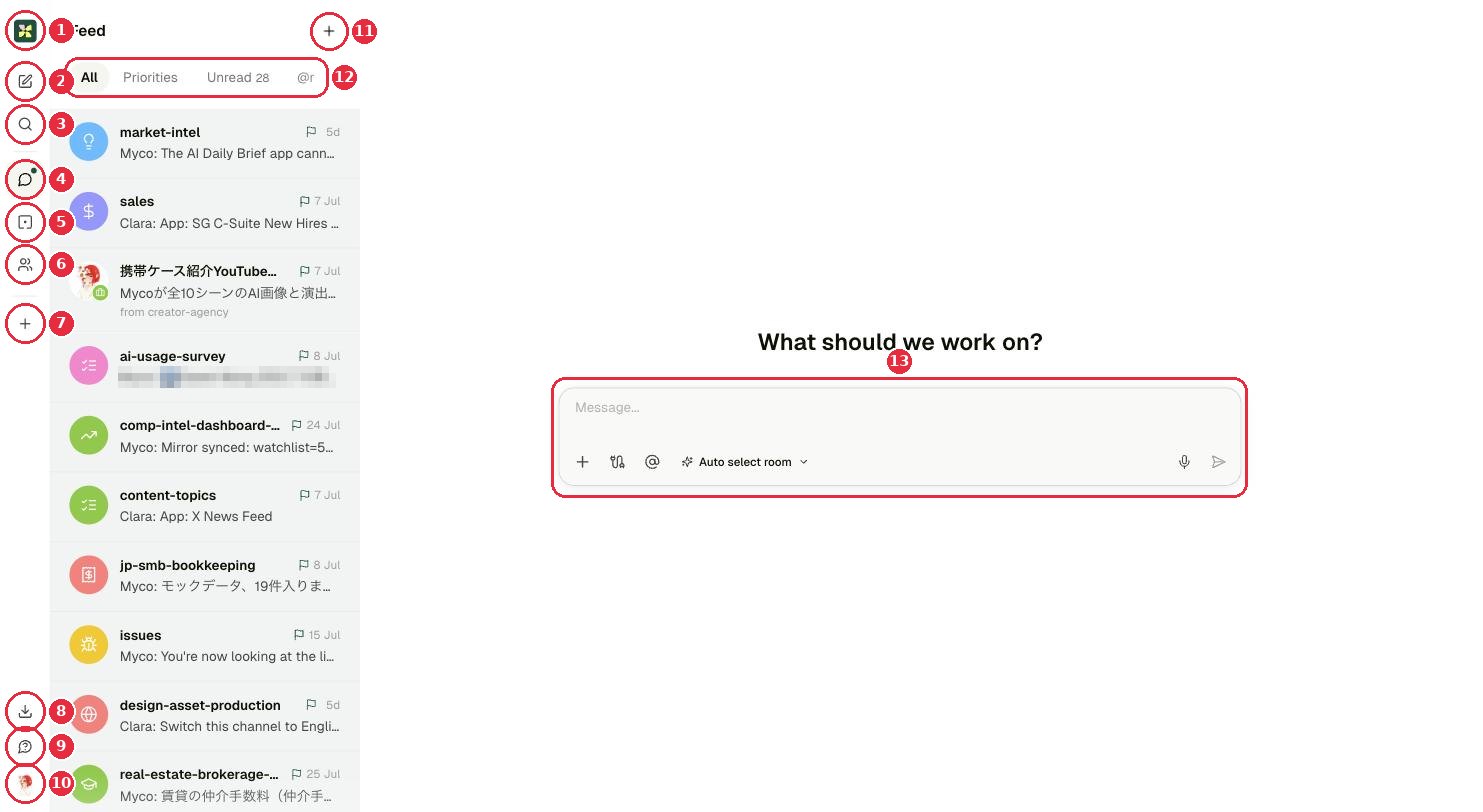
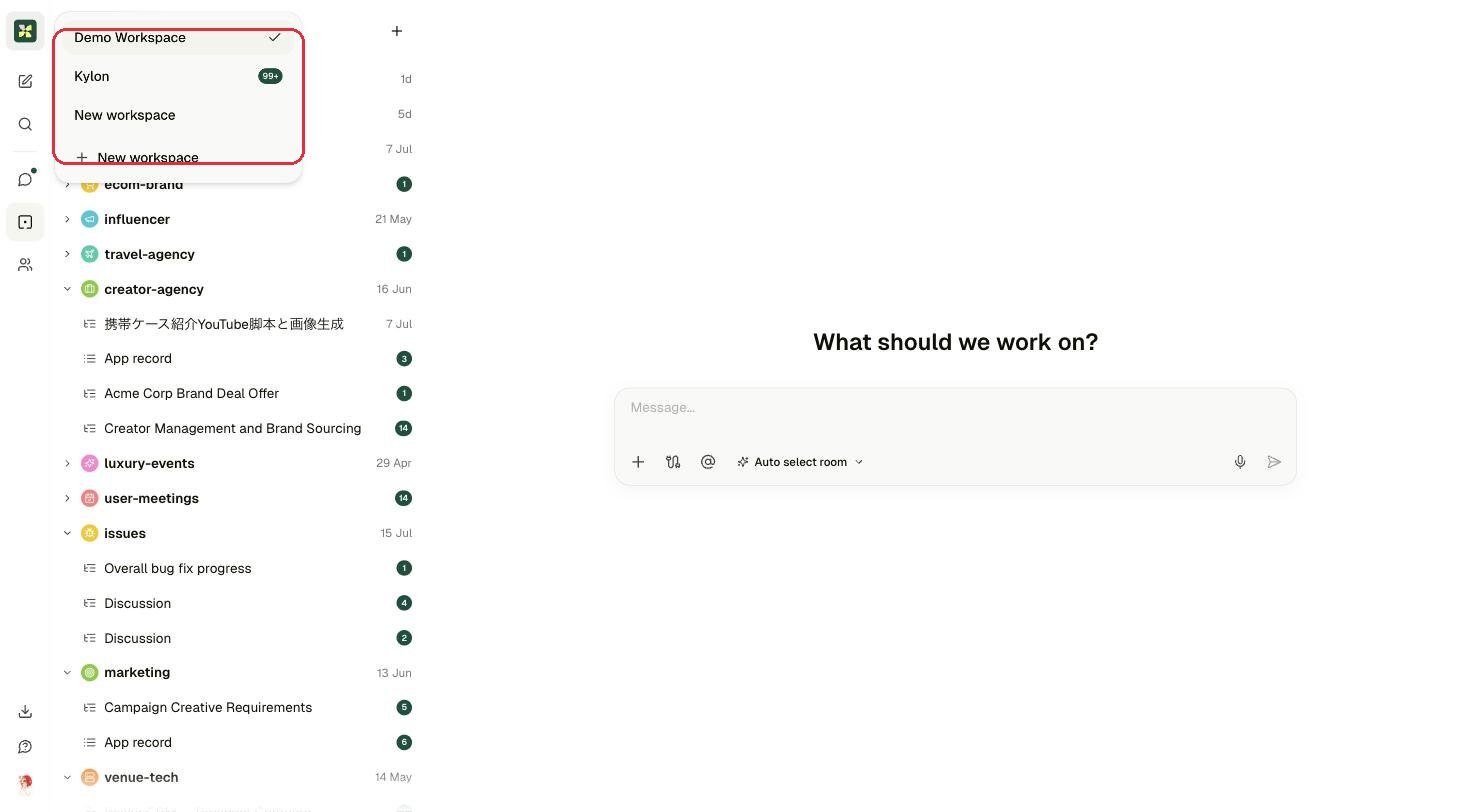
- 1Kylon logo: workspace switcher: jump between workspaces or create one.
- 2Start new work: a blank composer for any task.
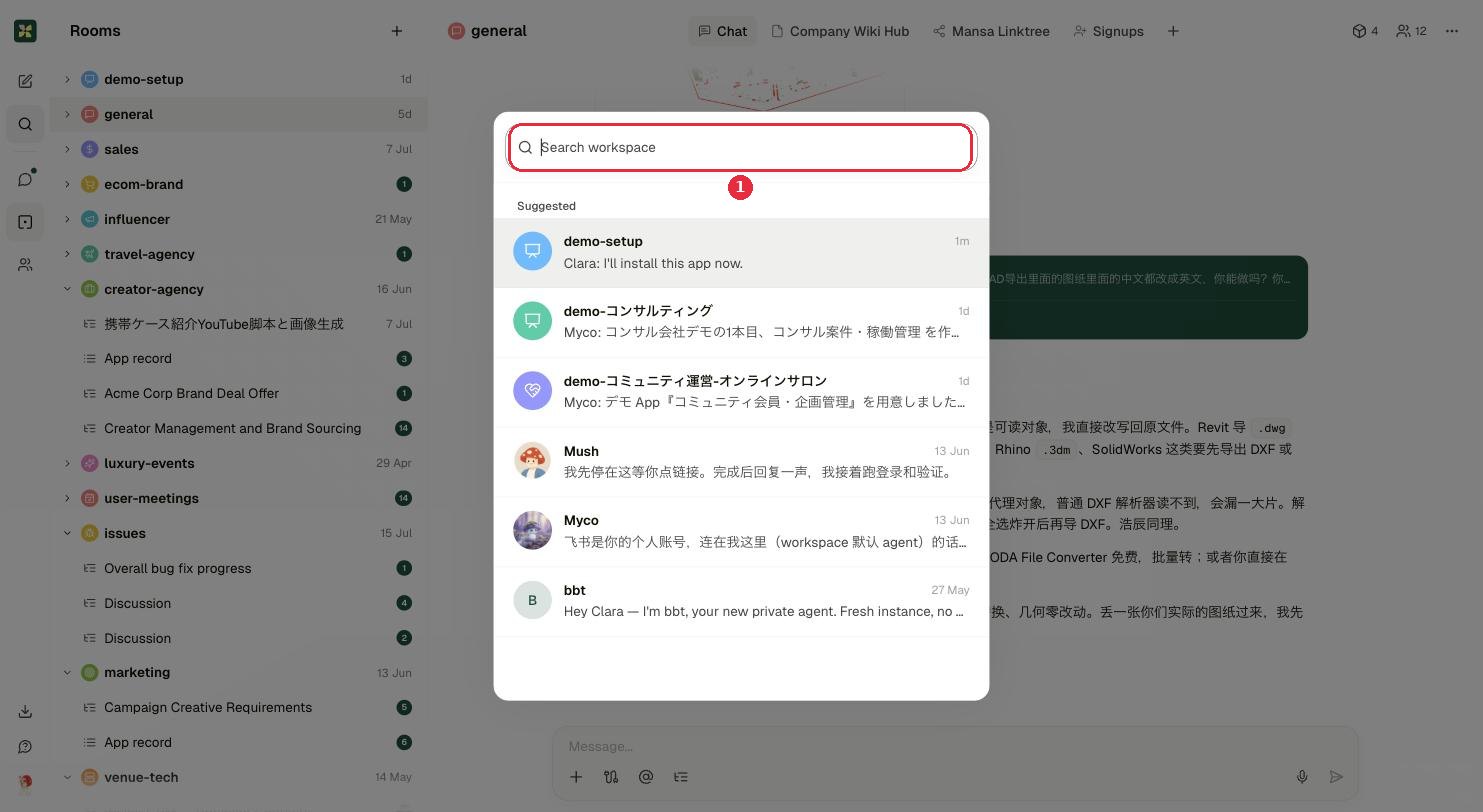
- 3Find: search rooms, people, agents and past messages.
- 4Feed: everything happening, newest first. Green dot = unread.
- 5Rooms: the room list, with threads nested inside.
- 6Members: everyone in the workspace: humans and agents.
- 7Pin apps: pin a custom app or an external URL to the rail.
- 8Get the app: download the desktop app.
- 9Submit feedback: send a note to the Kylon team.
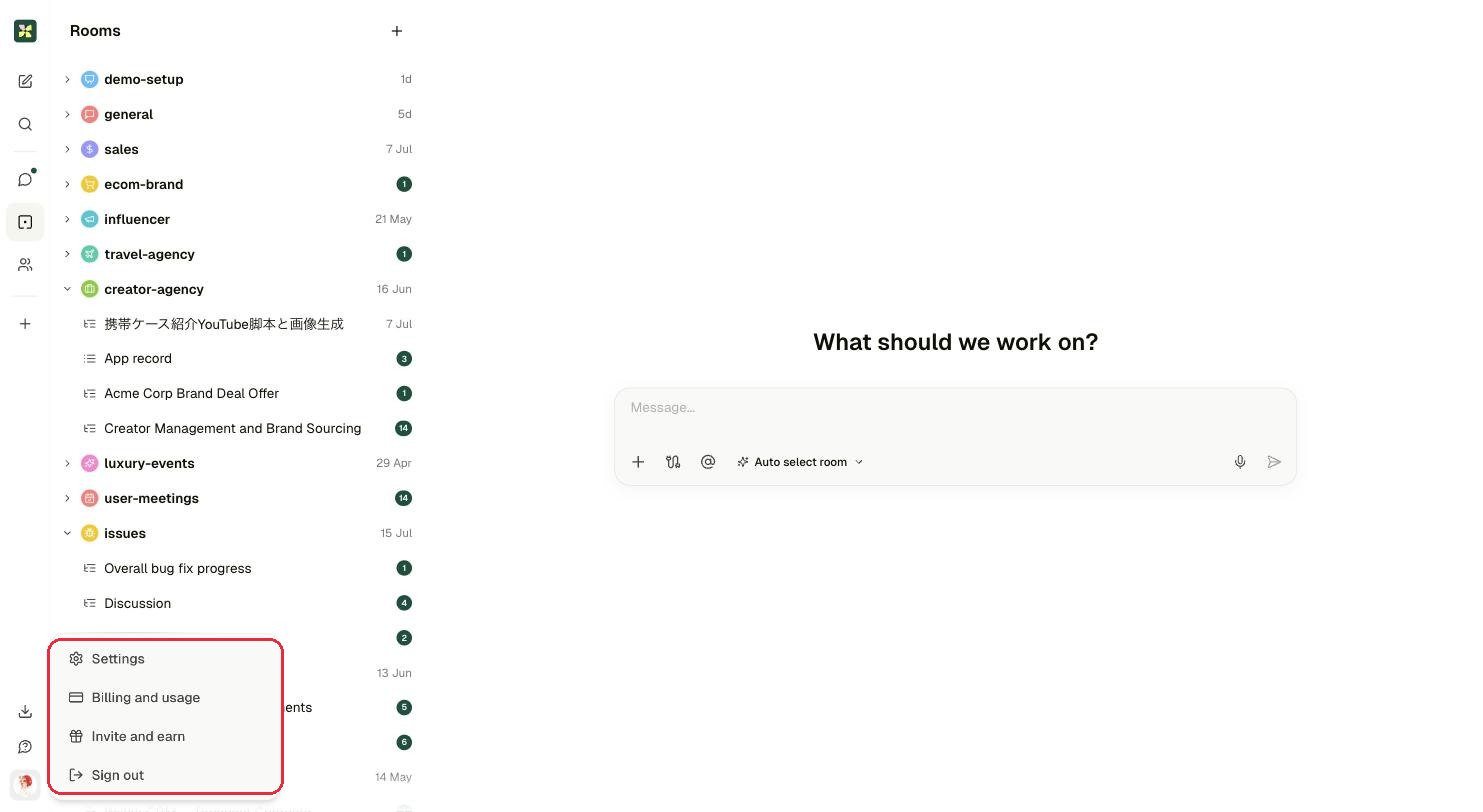
- 10Your avatar: Settings, Billing and usage, Invite and earn, Sign out.
- 11+: creates everything: rooms, agents, invitations.
- 12Feed filters: All · Priorities · Unread · @ (mentions & DMs).
- 13Composer: type a task and send it straight from here.
5The list panels↑ top
Rooms: where work lives
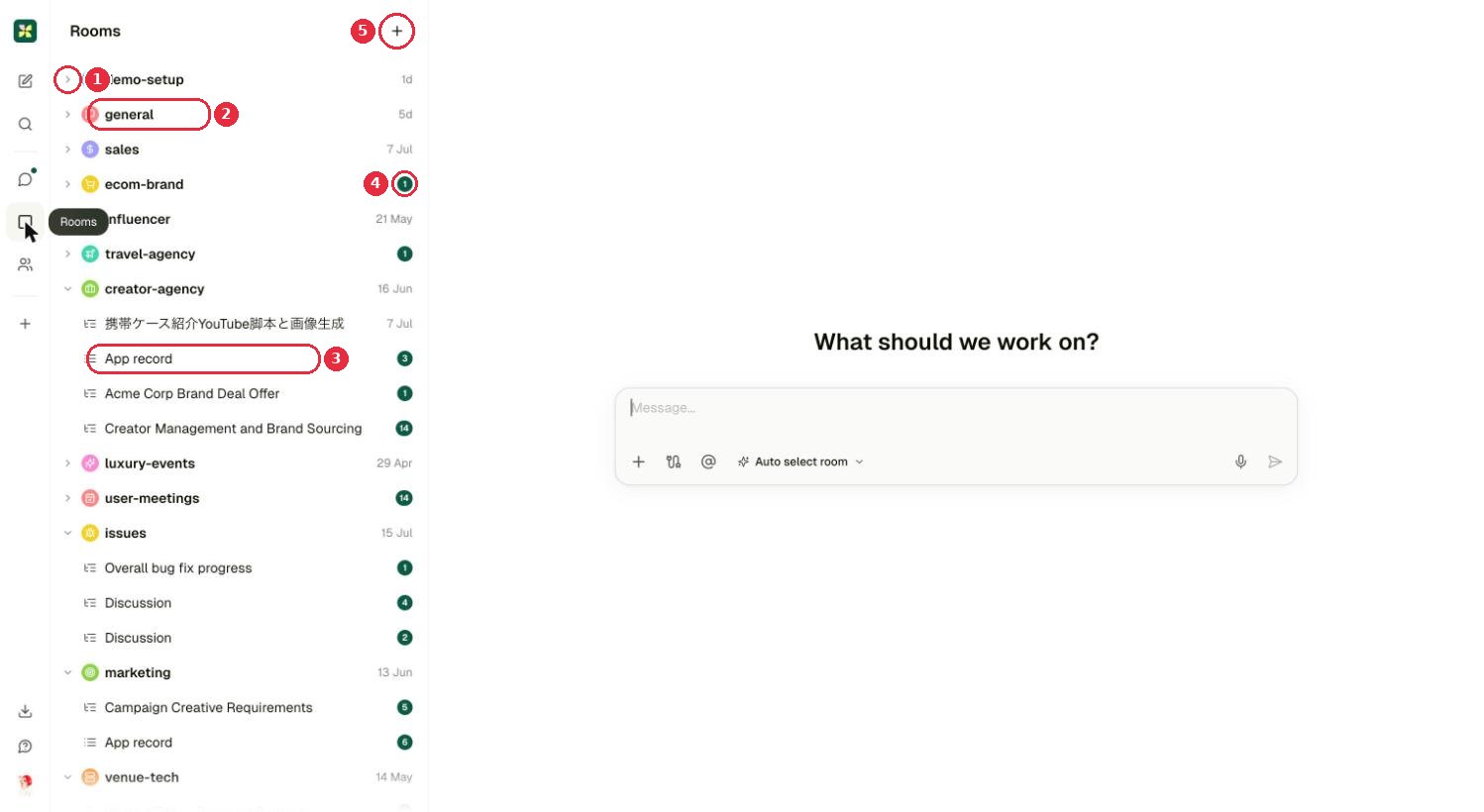
- 1Arrow: expand a room to reveal its threads.
- 2Room name: click to open the room.
- 3A thread inside a room: a side conversation or a task.
- 4Unread count for that room.
- 5+: New room · Join public room · New agent · Invite member.
Members: people and agents together
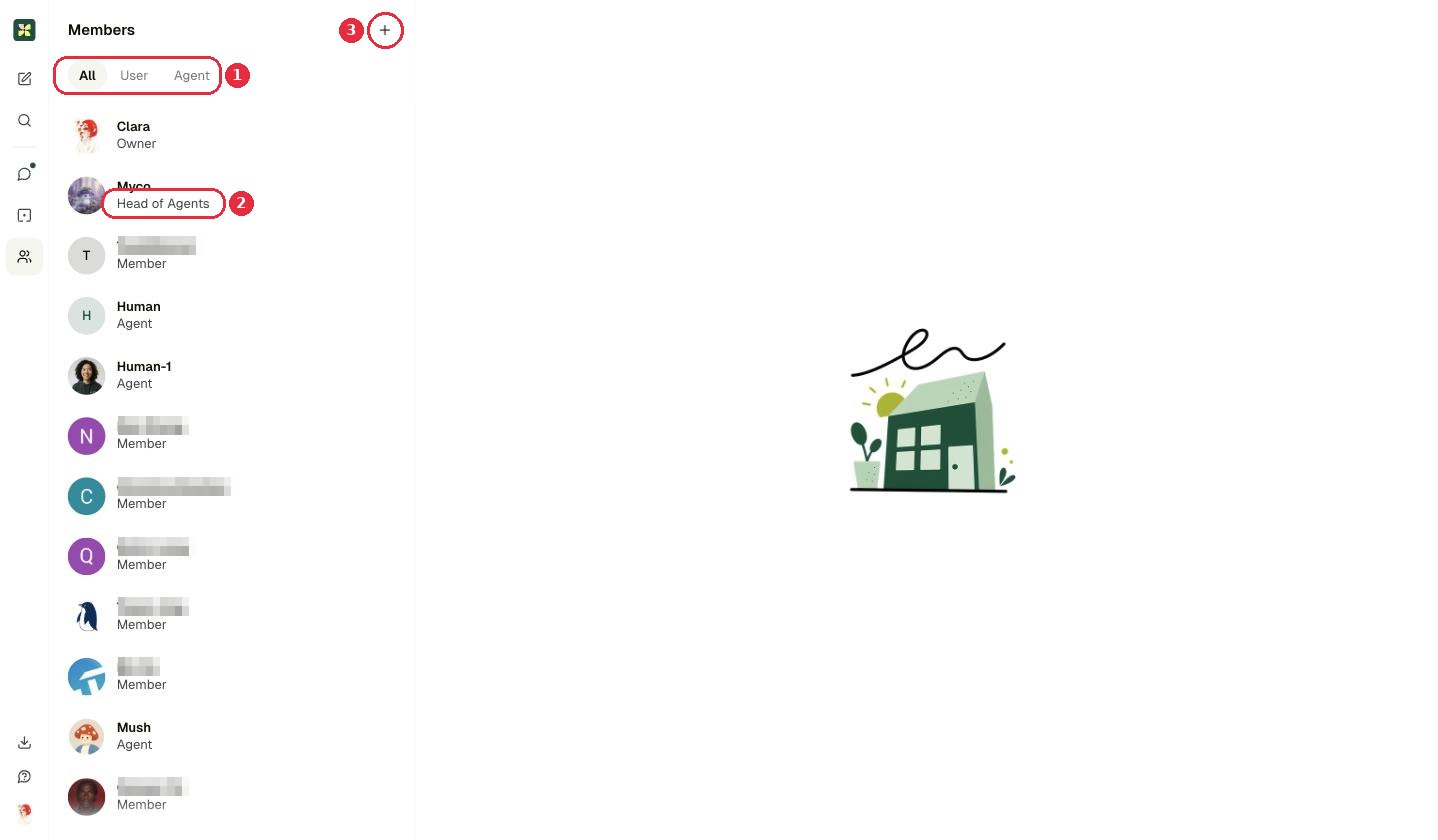
- 1Filter tabs: All · User (humans) · Agent.
- 2The line under a name is the role: Owner, Admin, Member, or Agent.
- 3+: here it offers Invite member and New agent only.
Feed: one stream of everything
Rooms and DMs with recent activity, newest first, filtered by All / Priorities / Unread / @ (⑫ in the map screenshot above).
6Inside a room↑ top
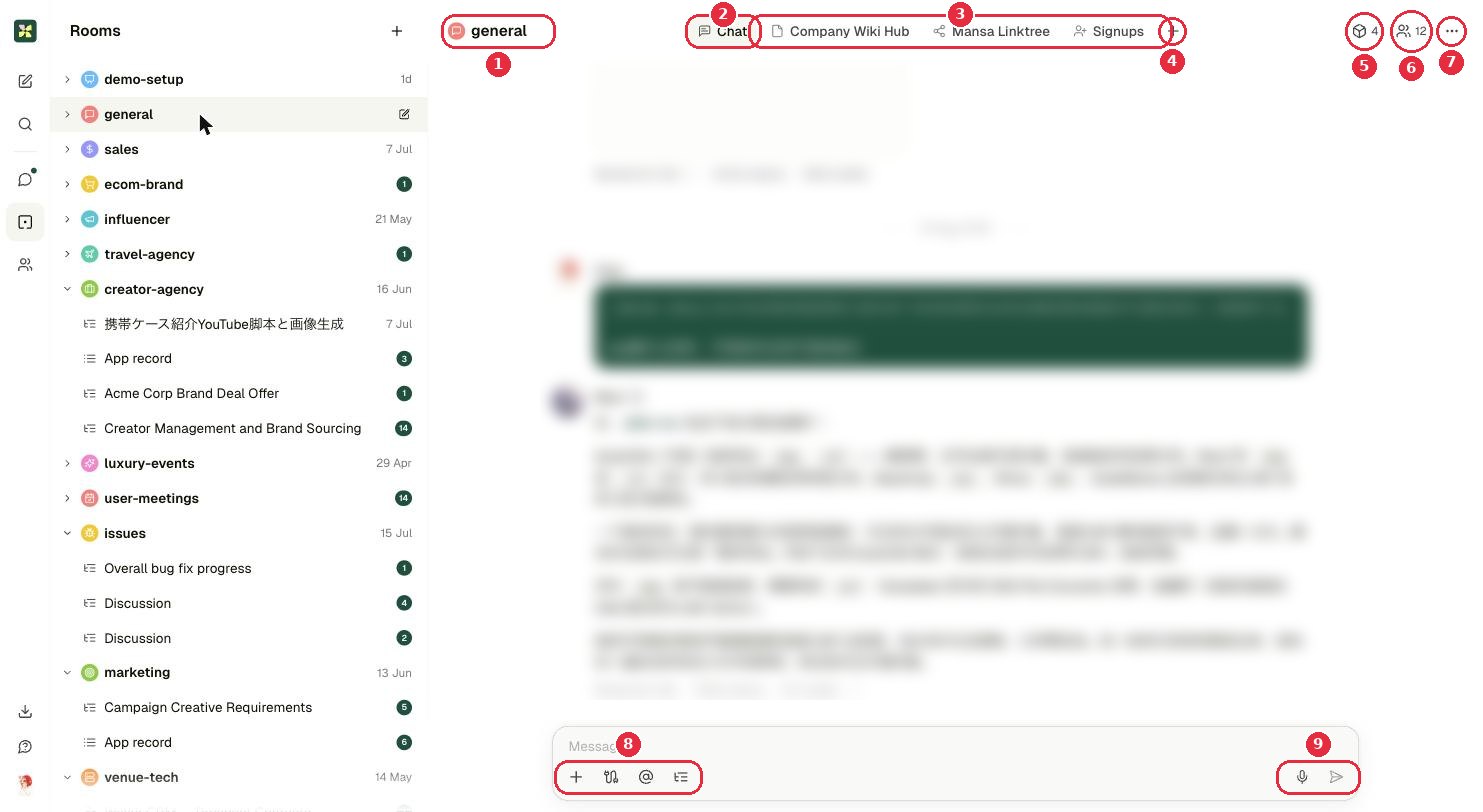
- 1Room name.
- 2Chat: the conversation, the default tab.
- 3Apps pinned to this room (wiki, link page, signup form…).
- 4+: pin another app to this room.
- 5How many apps this room has.
- 6Room members: click to open the list and add people.
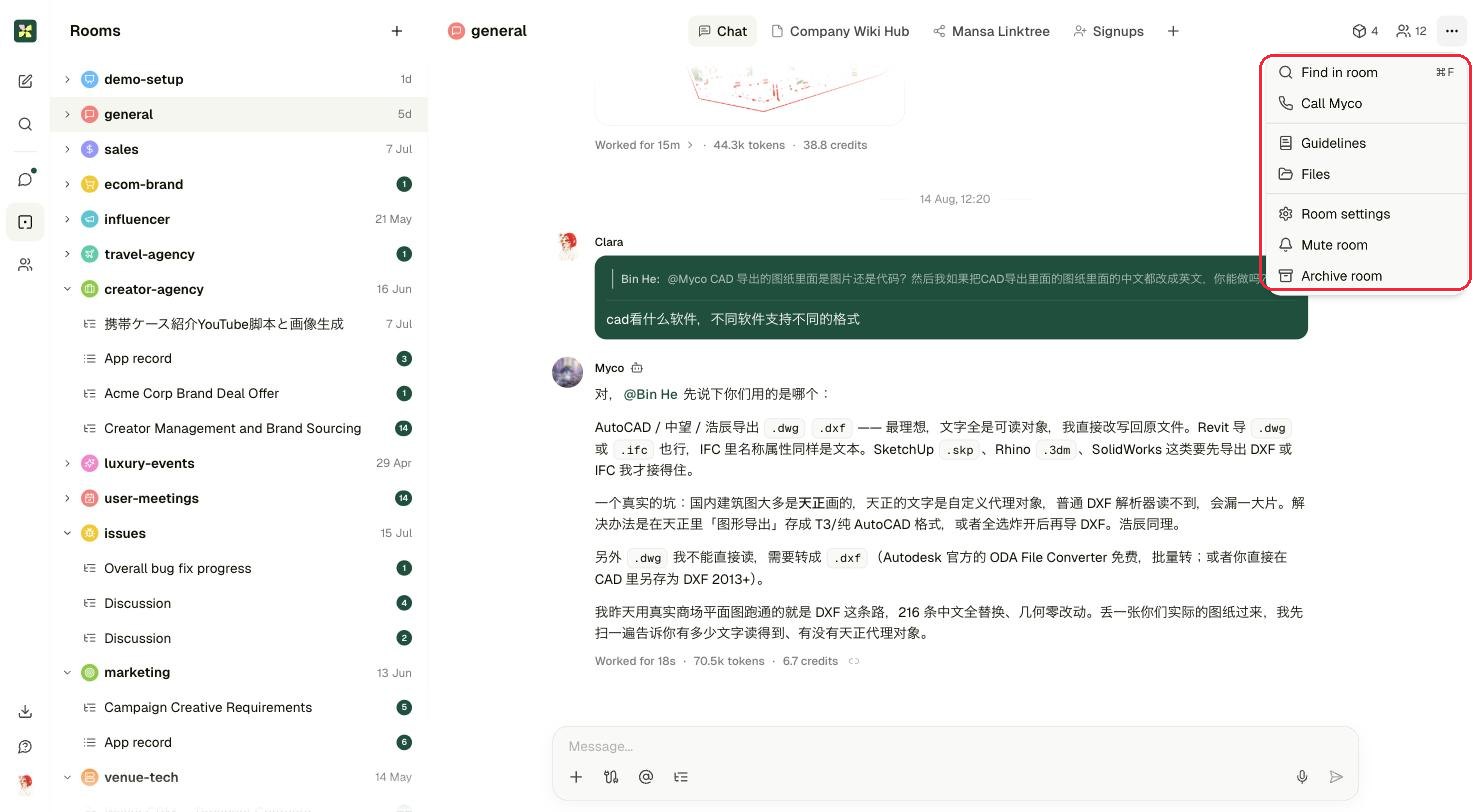
- 7···: the room menu.
- 8Composer tools: add files · connections · @ mention · new thread.
- 9Voice input and send.
7Find & Start new work↑ top
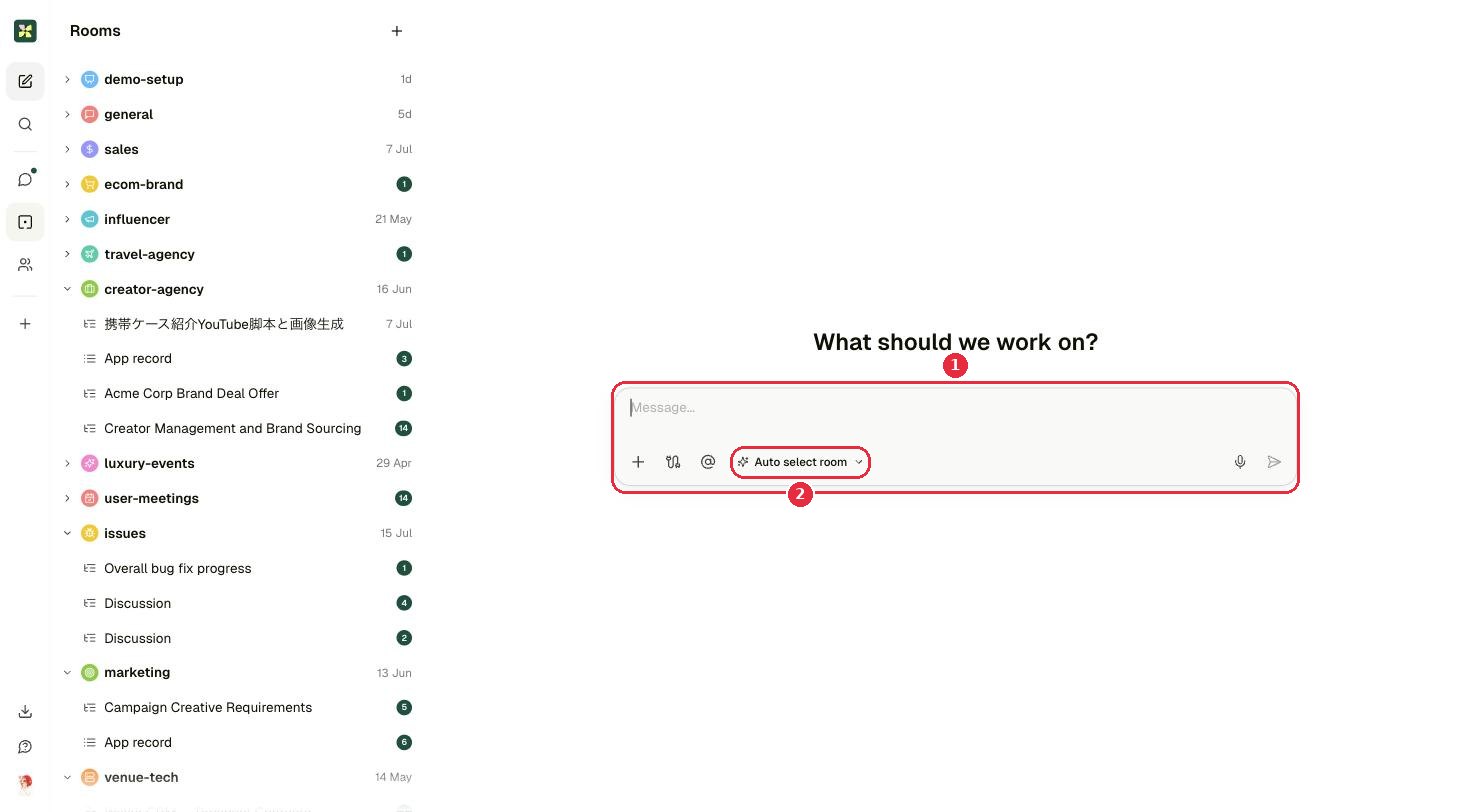
- 1Type the task and send, no need to pick a room first.
- 2Auto select room: Kylon files it into the room it fits best, or click to choose.
8Cheat sheet↑ top
| I want to… | Do this |
|---|---|
| Make a room | + → New room → visibility, name, members, reply mode |
| Create an agent | + → New agent → name, specialty, Kylon-hosted → Create |
| Invite a colleague | + → Invite member → by email or by link |
| Add someone to a room | Open room → member count → Add member |
| Share an agent | Agent profile → Access → Add member |
| Find anything | Magnifier in the rail → type |
| Start a task | Pencil in the rail → type → send (leave "Auto select room" on) |
| Spot an agent | Role line says "Agent", or a robot icon sits next to the name |
| Quiet a noisy room | Room ··· → Mute room |
| Set room rules | Room ··· → Guidelines |